taichi学习笔记(1)-基础使用

taichi的安装非常简单,只需要在python环境中安装即可。

1
pip install taichi

本篇的内容均来自官网教程,主要记录的是一些关键信息,更多细节可以查看原始文档:

  • Docs: https://docs.taichi-lang.org/docs/overview

Quick Start

Julia Fractal

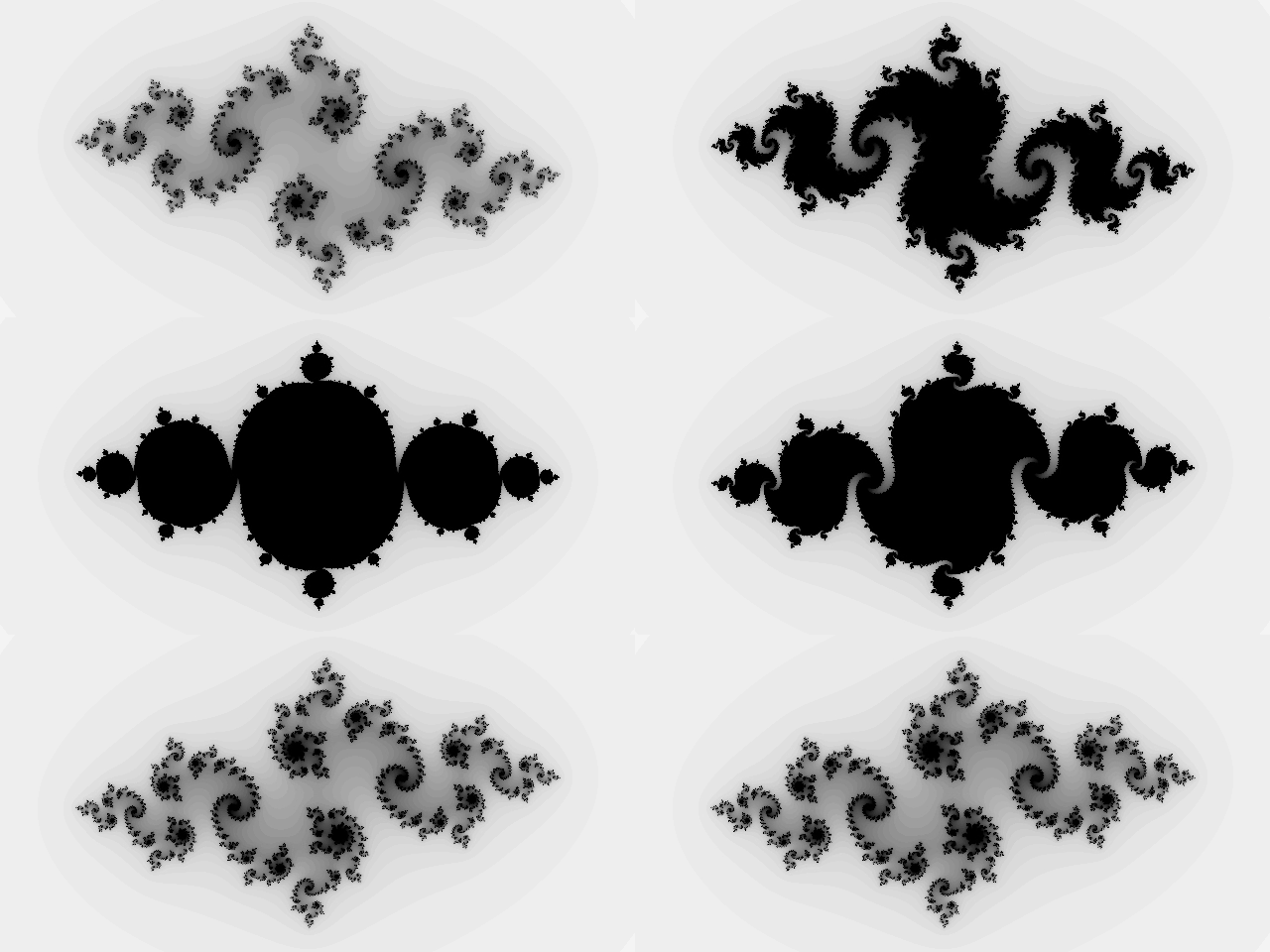
第一个简单例子是使用taichi绘制Julia分形图案。

1
2
3
4
5
6
7
8
9
10
11
12
13
14
15
16
17
18
19
20
21
22
23
24
25
26
27
28
29
30
31
import taichi as ti
import taichi.math as tm

ti.init(arch=ti.gpu)

n = 320
pixels = ti.field(dtype=float, shape=(n * 2, n))

@ti.func # taichi function注解
def complex_sqr(z): # complex square of a 2D vector
return tm.vec2(z[0] * z[0] - z[1] * z[1], 2 * z[0] * z[1])

@ti.kernel # taichi kernel注解
def paint(t: float):
for i, j in pixels: # Parallelized over all pixels
c = tm.vec2(-0.8, tm.cos(t) * 0.2)
z = tm.vec2(i / n - 1, j / n - 0.5) * 2
iterations = 0
while z.norm() < 20 and iterations < 50:
z = complex_sqr(z) + c # 在taichi kernel中调用taichi function
iterations += 1
pixels[i, j] = 1 - iterations * 0.02

gui = ti.GUI("Julia Set", res=(n * 2, n))

i = 0
while gui.running:
paint(i * 0.03) # 调用taichi kernel
gui.set_image(pixels)
gui.show()
i += 1

效果如下:

如果在headless的服务器上,可以通过保存图像来并转化为video来进行可视化。

1
2
3
4
5
6
7
8
9
10
11
12
13
14
15
16
17
18
19
20
21
22
23
24
25
26
27
28
29
30
31
32
33
34
35
36
37
38
39
40
41
42
43
44
45
46
import taichi as ti
import taichi.math as tm

ti.init(arch=ti.gpu)

n = 320
pixels = ti.field(dtype=float, shape=(n * 2, n))

@ti.func
def complex_sqr(z): # complex square of a 2D vector
return tm.vec2(z[0] * z[0] - z[1] * z[1], 2 * z[0] * z[1])

@ti.kernel
def paint(t: float):
for i, j in pixels: # Parallelized over all pixels
c = tm.vec2(-0.8, tm.cos(t) * 0.2)
z = tm.vec2(i / n - 1, j / n - 0.5) * 2
iterations = 0
while z.norm() < 20 and iterations < 50:
z = complex_sqr(z) + c
iterations += 1
pixels[i, j] = 1 - iterations * 0.02

window = ti.ui.Window("Julia Set", res=(n * 2, n), show_window=False) # show_window=False来设置headless模式
canvas = window.get_canvas()
frames = []

i = 0
while window.running:
paint(i * 0.03)
canvas.set_image(pixels)
# window.save_image(f"julia_{i}.png") # 直接保存图像到文件系统
frames.append(window.get_image_buffer_as_numpy()[..., :3]) # 存储frame内容到内存中
i += 1
if i >= 100:
break


import numpy as np

frames = np.array(frames) # length, width, height, channel
frames = frames.transpose(0, 2, 1, 3) # mediapy默认使用高宽格式,这里需要转换

import mediapy as mp

mp.show_video(frames, fps=30)

Physical Simulation

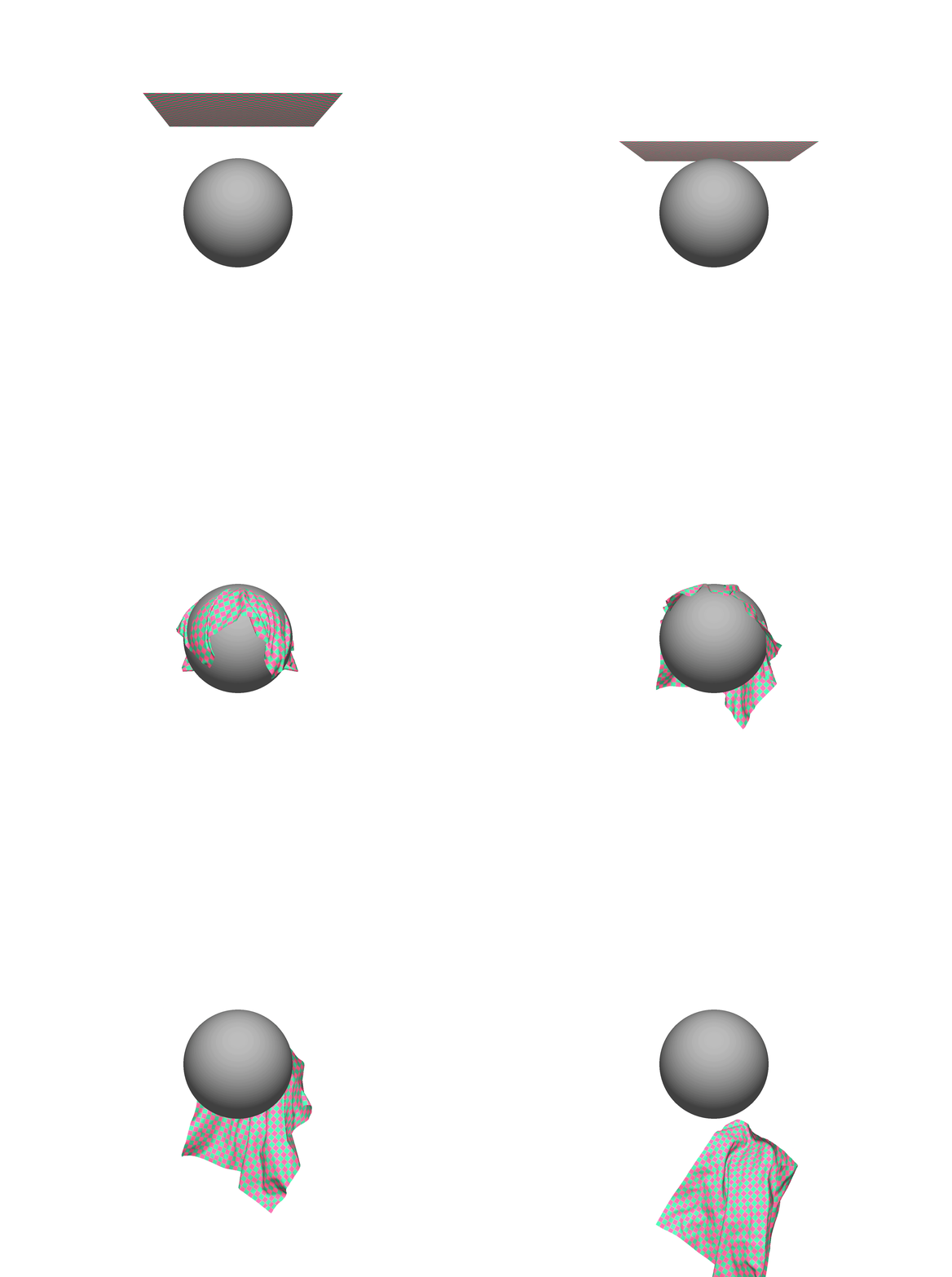
以下程序可以用来完成一个物理仿真程序,它模拟了一块布料落到小球上的过程。

1
2
3
4
5
6
7
8
9
10
11
12
13
14
15
16
17
18
19
20
21
22
23
24
25
26
27
28
29
30
31
32
33
34
35
36
37
38
39
40
41
42
43
44
45
46
47
48
49
50
51
52
53
54
55
56
57
58
59
60
61
62
63
64
65
66
67
68
69
70
71
72
73
74
75
76
77
78
79
80
81
82
83
84
85
86
87
88
89
90
91
92
93
94
95
96
97
98
99
100
101
102
103
104
105
106
107
108
109
110
111
112
113
114
115
116
117
118
119
120
121
122
123
124
125
126
127
128
129
130
131
132
133
134
135
136
137
138
139
140
141
142
143
144
145
146
147
148
149
150
151
152
153
154
155
156
157
158
import taichi as ti
ti.init(arch=ti.gpu) # Alternatively, ti.init(arch=ti.cpu)

# 布料的仿真:使用质点弹簧系统
n = 128
quad_size = 1.0 / n
dt = 4e-2 / n
substeps = int(1 / 60 // dt)

gravity = ti.Vector([0, -9.8, 0]) # 重力表示
# 弹性相关参数
spring_Y = 3e4
dashpot_damping = 1e4
drag_damping = 1

# 小球的参数定义
ball_radius = 0.3
ball_center = ti.Vector.field(3, dtype=float, shape=(1, ))
ball_center[0] = [0, 0, 0]

x = ti.Vector.field(3, dtype=float, shape=(n, n)) # 使用n*n的质点位置数组表示布料的位置
v = ti.Vector.field(3, dtype=float, shape=(n, n)) # 使用n*n的质点速度数组表征各个质点的速度

# 定义组成整个布料的三角形网络
num_triangles = (n - 1) * (n - 1) * 2
indices = ti.field(int, shape=num_triangles * 3) # 组成三角形的索引
vertices = ti.Vector.field(3, dtype=float, shape=n * n) # 顶点的位置
colors = ti.Vector.field(3, dtype=float, shape=n * n) # 顶点的颜色

bending_springs = False

# 初始化布料的质点和速度数组
@ti.kernel
def initialize_mass_points():
random_offset = ti.Vector([ti.random() - 0.5, ti.random() - 0.5]) * 0.1

for i, j in x:
x[i, j] = [
i * quad_size - 0.5 + random_offset[0], 0.6,
j * quad_size - 0.5 + random_offset[1]
]
v[i, j] = [0, 0, 0]

# 初始化布料的三角形网络
@ti.kernel
def initialize_mesh_indices():
for i, j in ti.ndrange(n - 1, n - 1):
quad_id = (i * (n - 1)) + j
# 1st triangle of the square
indices[quad_id * 6 + 0] = i * n + j
indices[quad_id * 6 + 1] = (i + 1) * n + j
indices[quad_id * 6 + 2] = i * n + (j + 1)
# 2nd triangle of the square
indices[quad_id * 6 + 3] = (i + 1) * n + j + 1
indices[quad_id * 6 + 4] = i * n + (j + 1)
indices[quad_id * 6 + 5] = (i + 1) * n + j

for i, j in ti.ndrange(n, n):
if (i // 4 + j // 4) % 2 == 0:
colors[i * n + j] = (0.22, 0.72, 0.52)
else:
colors[i * n + j] = (1, 0.334, 0.52)

initialize_mesh_indices()

# 计算影响单个质点的周围质点offset
spring_offsets = []
if bending_springs:
for i in range(-1, 2):
for j in range(-1, 2):
if (i, j) != (0, 0):
spring_offsets.append(ti.Vector([i, j]))

else:
for i in range(-2, 3):
for j in range(-2, 3):
if (i, j) != (0, 0) and abs(i) + abs(j) <= 2:
spring_offsets.append(ti.Vector([i, j]))

# 计算在每个dt中的变化step
@ti.kernel
def substep():
# 每个质点都受到重力的影响
for i in ti.grouped(x):
v[i] += gravity * dt

# 模拟布料弹簧质点系统的内力
for i in ti.grouped(x):
force = ti.Vector([0.0, 0.0, 0.0])
for spring_offset in ti.static(spring_offsets):
j = i + spring_offset
if 0 <= j[0] < n and 0 <= j[1] < n:
x_ij = x[i] - x[j]
v_ij = v[i] - v[j]
d = x_ij.normalized()
current_dist = x_ij.norm()
original_dist = quad_size * float(i - j).norm()
# Spring force
force += -spring_Y * d * (current_dist / original_dist - 1)
# Dashpot damping
force += -v_ij.dot(d) * d * dashpot_damping * quad_size

v[i] += force * dt
# 模拟布料与球的碰撞
for i in ti.grouped(x):
v[i] *= ti.exp(-drag_damping * dt)
offset_to_center = x[i] - ball_center[0]
if offset_to_center.norm() <= ball_radius:
# Velocity projection
normal = offset_to_center.normalized()
v[i] -= min(v[i].dot(normal), 0) * normal
x[i] += dt * v[i] # 计算每个质点的最终速度,然后利用dt作用在质点上,得到最终的位移

# 根据质点位置更新布料三角形网络的位置
@ti.kernel
def update_vertices():
for i, j in ti.ndrange(n, n):
vertices[i * n + j] = x[i, j]

# 利用GUI进行渲染
window = ti.ui.Window("Taichi Cloth Simulation on GGUI", (1024, 1024), vsync=True)
canvas = window.get_canvas()
canvas.set_background_color((1, 1, 1))
scene = window.get_scene()
camera = ti.ui.Camera()

current_t = 0.0
initialize_mass_points()

while window.running:
if current_t > 1.5:
# Reset
initialize_mass_points()
current_t = 0

# 进行每一步的模拟
for i in range(substeps):
substep()
current_t += dt
update_vertices()

# 在每个step中都需要设置camera的位置
camera.position(0.0, 0.0, 3)
camera.lookat(0.0, 0.0, 0)
scene.set_camera(camera)
# 设置场景的光源
scene.point_light(pos=(0, 1, 2), color=(1, 1, 1))
scene.ambient_light((0.5, 0.5, 0.5))
# 更新scene中的mesh表示
scene.mesh(vertices,
indices=indices,
per_vertex_color=colors,
two_sided=True)

# Draw a smaller ball to avoid visual penetration
scene.particles(ball_center, radius=ball_radius * 0.95, color=(0.5, 0.5, 0.5)) # color:[rgb]
canvas.scene(scene)
window.show()

最终的仿真效果如下:

关于该程序,除了注释,还有一些需要注意的地方:

  • Arch的尝试顺序:如果指定了ti.gpu,那么系统会以此尝试ti.cuda, ti.vulkan, ti.opengl/ti.Metal
    • 其中Vulkan是一个低开销,跨平台的二维/三维图形与计算的API,与OpenGL类似,Vulkan针对全平台即时3D图形程序而设计,并提供高性能与更均衡的CPU和GPU占用
  • for i in ti.grouped(x) 是taichi 的一个重要特性。这意味着这个 for 循环会自动遍历x 的所有元素,无论其形状如何,都是一个一维数组,省去了你编写多层 for 循环的麻烦,而返回的索引则基本是tuple的格式,能够一步索引到对应的元素

Core Concept Introduction

Kernels & Functions

taichi的语法与Python非常类似,但是并不完全相同。taichi提供了两个装饰器,分别对应taichi kernel和taichi function。

  • @ti.kernel:被修饰的函数称为taichi kernel,这些函数是taichi运行时运行任务的入口,必须要由python代码直接调用。
  • @ti.func:被修饰的函数称为taichi function,这些函数是taichi kernel的组成部分,只能由另一个taichi function或者kernel调用。

有了这两个装饰器,我们就可以定义两个概念,taichi作用域和python作用域。在taichi kernel或者taichi function内部的代码都属于taichi作用域,这些代码在运行的时候会在多核CPU或者GPU上并行编译并执行,以实现高性能计算,可以对应CUDA中的device side;其余部份的代码则均属于python作用域,可以对应CUDA中的host side。

taichi 函数和taichi kernel不由Python的解释器执行,而是被JIT编译器接管并部署到并行多核CPU或者GPU上。

关于taichi kernels,有如下需要注意的地方:

  • taichi kernel是taichi执行的入口点,只能被Python作用域中的代码调用,不允许在taichi作用域中被调用。即无论是taichi kernel还是taichi function都不允许调用taichi kernel;

  • taichi kernel中的for循环会被自动并行处理,但是需要注意的是,只有最外层的for会被并行,嵌套的for不会被并行处理。同时被并行的循环不支持break,不过内层循环支持;

  • 一个taichi kernel最多允许有一个返回值,最多允许一个返回语句;

  • taichi kernel的参数和返回值需要类型提示,如果没有参数或者没有返回值,则相应不需要类型提示;

  • taichi kernel可以接受多个参数,包括标量,ti.types中支持的类型,但是其中不包括Python中的objects

    • 值传递的类型:标量、ti.types.matrix(), ti.types.vector(), ti.types.struct(),
    • 引用传递的类型:ti.types.ndarray(), ti.template()
  • 可以定义多个taichi kernel,这些kernel彼此独立,按照首次调用的顺序进行编译和执行,编译后的kernel会被缓存,以减少后续调用的启动开销;

  • 如果taichi kernel中用到了python全局变量,会被视为编译时常量,即在kernel被编译的时候,这些变量的值在kernel就被记录为常量,而不会跟踪后续的更改;

关于taichi function,有如下需要注意的地方:

  • taichi function只能在taichi作用域中被调用,即只能在taichi kernel或者taichi function中调用taichi function;
  • taichi function并不支持函数内的递归调用,因为taichi function在编译的时候是inline展开,最终得到单个大型function。而递归调用会导致编译时函数调用堆栈的无限扩展;
  • taichi function不强制需要类型提示,不过也建议使用;
  • taichi function可以有多个返回值,但是同样不能有多个return语句

Type System

ti.types模块中定义了所有支持的数据类型,这些数据类型分为两类:原始数据类型和复合数据类型。

  • 原始数据类型:包括常用的数字数据类型
  • 复合数据类型:包括类似数组或者结构体的数据类型

taichi是一种静态类型编程语言,即taichi作用域中的变量类型在编译的时候被确定,一旦某个变量被声明了是某个类型(例如第一次被赋值),后续就始终维持该类型,不能被分配其他类型的值。如果赋值了不同类型的值,会首先尝试转换,如果无法自动转换,则会抛出错误。

当然也可以显式地进行数据类型转换。

taichi中的原始数据类型均为标量,例如ti.i32ti.f32等,以下是不同后端支持的taichi原始数据类型说明,其中 ○。表示需要后端扩展。

Backend i8 i16 i32 i64 u8 u16 u32 u64 f16 f32 f64
CPU
CUDA
OpenGL
Metal
Vulkan

默认的原始数据类型是ti.i32ti.f32,可以在调用init的时候指定默认的原始数据类型。同时python中的intfloat,如果在对应指的就是taichi中默认的原始数据类型。

1
2
ti.init(default_ip=ti.i64)  # Sets the default integer type to ti.i64
ti.init(default_fp=ti.f64) # Sets the default floating-point type to ti.f64

taichi中的复合数据类型则是由用户定义的数据类型,由多个元素组成,支持的复合数据类型包括vector、matrix、ndarray和struct。

1
2
3
4
5
6
7
8
9
10
11
12
13
14
15
16
17
18
19
20
21
22
23
24
25
26
27
# 定义向量和矩阵类型type
vec4d = ti.types.vector(4, ti.f64) # a 64-bit floating-point 4D vector type
mat4x3i = ti.types.matrix(4, 3, int) # a 4x3 integer matrix type

# 利用定义的type来实例化
v_float = vec4d(1, 2, 3, 4)
m_int = mat4x3i([[1, 2, 3], [4, 5, 6], [7, 8, 9], [10, 11, 12]])

# vector和matrix的类型转换
v_int = int(v_float)

# 或者使用struct/dataclass来定义复合类型

# 使用struct定义复合类型
vec3 = ti.types.vector(3, float)
# 定义一个球的类型
sphere_type = ti.types.struct(center=vec3, radius=float)
# 实例化不同的球type
sphere1 = sphere_type(center=vec3([0, 0, 0]), radius=1.0)
sphere2 = sphere_type(center=vec3([1, 1, 1]), radius=1.0)

# 使用dataclass定义复合类型
@ti.dataclass
class Sphere:
center: vec3
radius: float
# 该类的定义与上面sphere_type的定义能够完成相同的事情
  • 注意利用@ti.dataclass能够完成与ti.types.struct相同的事情,同时我们可以在这个类中定义成员函数,更好的实现面向对象编程(OOP)
  • 而关于类的初始化,则同时提供按照顺序,按照关键字参数进行初始化的功能。需要注意也支持部分指定,未指定的成员自动设置为0
  • 复合类型中只有vector和matrix支持类型转换,其中类型转换是按照元素执行的

Data Containers

taichi中的数据容器是field,这个概念借用于数学和物理学。field是taichi中的一种全局数据容器,可以直接从python作用域和taichi作用域访问。taichi中的field被定义为某种元素的多维数组,字段的元素可以是标量scalar、向量vector、矩阵matrix或者结构体struct。

1
2
3
4
5
6
7
8
9
10
11
12
13
14
15
16
17
18
19
20
21
22
23
24
25
# scalar fields:存储的元素是标量

# 定义
f_0d = ti.field(ti.f32, shape=()) # 0D field,即单个标量
f_1 = ti.field(ti.f32, shape=1) # A 1D field of length 1
f_1d = ti.field(ti.i32, shape=9) # A 1D field of length 9
f_2d = ti.field(int, shape=(3, 6)) # A 2D field in the shape (3, 6)

# 元素访问
f_0d[None] = 1 # 使用None访问单个标量
f_1[0] = 2 # 使用0来访问长度为1的scalar field
f_1d[1] = 3 # 直接使用index访问
f_2d[i, j] = 4 # 直接使用tuple形式的index访问

# 不支持切片,下面用法都是错误的
# for x in f_2d[0] ...
# f_2d[0][3:] = [4, 5, 6]

# 给所有元素填充某个值
x = ti.field(int, shape=(5, 5))
x.fill(1) # Sets all elements in x to 1

# 检查类型、形状
f_1d.shape
f_3d.dtype
  • 注意taichi总仅支持维度小于等于8的field
1
2
3
4
5
6
7
8
9
10
11
12
13
14
# vector fields:存储的元素是向量

f = ti.Vector.field(n=2, dtype=float, shape=(3, 3)) # n表示vector的长度

# 访问field的vector,以及vector的某个分量
f[i, j][0]

# 如果向量维度不超过4,可以使用xyzw,rgba访问0-3的分量
volumetric_field[i, j, k].x = 1 # Equivalent to volumetric_field[i, j, k][0] = 1
volumetric_field[i, j, k].y = 2 # Equivalent to volumetric_field[i, j, k][1] = 2
volumetric_field[i, j, k].z = 3 # Equivalent to volumetric_field[i, j, k][2] = 3
volumetric_field[i, j, k].w = 4 # Equivalent to volumetric_field[i, j, k][3] = 4
volumetric_field[i, j, k].xyz = 1, 2, 3 # Assigns 1, 2, 3 to the first three components
volumetric_field[i, j, k].rgb = 1, 2, 3 # Equivalent to the above
  • vector field表示元素是矢量的vector,vector可能代表像素的RGB,可能代表粒子的位置,空间中的引力场等
  • xyzw,rgba是语法糖,不过需要满足向量的维度不能超过4
1
2
3
4
5
6
# matrix fields:存储的元素是矩阵

tensor_field = ti.Matrix.field(n=3, m=2, dtype=ti.f32, shape=(300, 400, 500)) # n*m表示矩阵的维度

# 访问field的matrix以及对应分量
tensor_field[i, j, k][a, b]
  • matrix field中元素是matrix,不过较大的矩阵会导致更长的编译时间和更差的性能
  • 矩阵的维度尽可能保持小,但是后面的shape可以大,并且并行化就是体现在后面的shape
1
2
3
4
5
6
7
8
9
10
11
12
13
14
15
16
17
18
19
20
21
22
# struct fields:存储的元素是结构体

# 可以直接从ti.Struct.field创建
n = 10
particle_field = ti.Struct.field({
"pos": ti.math.vec3,
"vel": ti.math.vec3,
"acc": ti.math.vec3,
"mass": float,
}, shape=(n,))
# 也可以从struct中调用field创建
vec3 = ti.math.vec3
n = 10
particle = ti.types.struct(
pos=vec3, vel=vec3, acc=vec3, mass=float,
)
particle_field = particle.field(shape=(n,))

# 可以先用名称定位
particle_field.mass[0] = 1.0
# 也可以先用索引定位
particle_field[0].pos = vec3(0)
  • struct field中的对应元素可以调用对应的方法,例如利用.fill()方法填充所有的值

[Advanced] AoS和SoA

AoS和SoA表示两种不同的布局方式,分别是Array of Structures(AoS)和Structure of Arrays(SoA)。

考虑一个具有四个像素、每个像素具有RGB颜色通道的图像,AoS和SoA的内存布局方式如下:

1
2
3
# address: low ...................... high
# AoS: RGBRGBRGBRGBRGBRGB.............
# SoA: RRRRR...RGGGGGGG...GBBBBBBB...B

不同内存布局的使用主要看我们需要什么样的访问方式:

  • 如果我们要计算每个像素的灰度,那么并行单位应该要访问RGB,这时候选择AoS布局具有更好的内存访问模式
  • 如果我们要计算每个通道的均值,那么并行单位应该要访问通道的所有值,这个时候SoA布局则是更好的方式

taichi中提供了非常方便的方式在两种内存布局中转换:

1
2
3
4
5
6
7
8
9
10
11
12
13
x = ti.field(ti.f32, shape=M)
y = ti.field(ti.f32, shape=M)

# SoA内存布局
ti.root.dense(ti.i, M).place(x)
ti.root.dense(ti.i, M).place(y)
# address: low ................................. high
# x[0] x[1] x[2] ... y[0] y[1] y[2] ...

# AoS内存布局
ti.root.dense(ti.i, M).place(x, y)
# address: low .............................. high
# x[0] y[0] x[1] y[1] x[2] y[2] ...

这里还需要简要地补充介绍一下taichi.ndarray,它是一个保存连续多维数据的数组对象,作用与numpy中的numpy.ndarray类似,但是底层内存分配在taichi上。在大多数情况下,我们可以使用field作为数据容器,但是field的内部结构布局可能比较复杂,外部库很难直接解释或者使用存储在ti.field中的计算结果。而ndarray则是中分配一个连续的内存块,以便与外部进行直接的数据交换。

简而言之,field主要用于在复杂数据布局下最大化性能,如果仅处理密集数据或需要外部互操作,那么只需使用taichi.ndarray即可。

如果要与外部的array进行交互:

1
2
3
4
5
6
# 将数据从numpy数组导入taichi.field
x = ti.field(float, shape=(3, 3))
a = np.arange(9).reshape(3, 3).astype(np.int32)
x.from_numpy(a)

arr = x.to_numpy()
  • 类似的方法包括from_numpy()/from_torch(),该方法会将外部数组复制到field中
  • 如果taichi function或者kernel的参数使用了ti.types.ndarray()作为类型提示,则也可以接收numpy或者torch数组,但是此时仅支持连续的数组,并且是引用传递

OOP Support

taichi本身是一种面向数据的编程语言(Data-Oriented Programming,DOP),这种面向数据的设计认为一切都是可以采取行动的数据,将功能和数据区分开来。DOP的方式使得模块化变得困难。为了实现模块化代码,taichi借用了一些面向对象编程(OOP)的概念,这种混合方案被称为面向对象的数据编程(Objective Data-Oriented Programming, ODOP)。

ODOP方案允许我们在Class类中组织数据和方法,并且调用方法在taichi作用域内操作数据。taichi提供了两种不同类型的方法来实现该目的,分别是@ti.data_oriented@ti.dataclass

@ti.data_oriented:适用于数据在python作用域内主动更新,而在taichi kernel中进行跟踪。

1
2
3
4
5
6
7
8
9
10
11
12
13
14
15
16
17
18
19
20
21
import taichi as ti

ti.init()

@ti.data_oriented
class MyClass:
@ti.kernel
def inc(self, temp: ti.template()):

#increment all elements in array by 1
for I in ti.grouped(temp):
temp[I] += 1

def call_inc(self):
self.inc(self.temp)

def allocate_temp(self, n):
self.temp = ti.field(dtype = ti.i32, shape=n)

a = MyClass() # creating an instance of Data-Oriented Class
# 这里taichi.field的定义可以在任何python作用域中进行
  • @ti.data_oriented的属性会随着类的继承而延续下去,如果一个类的任何祖先类具有该装饰器,则它可以调用对应的taichi kernel

@ti.dataclass:提供了更多的灵活性,可以将taichi function定义为类本身的方法。

1
2
3
4
5
6
7
8
9
10
11
12
13
14
15
16
17
18
19
20
21
22
23
24
vec3 = ti.math.vec3

@ti.dataclass
class Sphere:
center: vec3
radius: ti.f32

@ti.func
def area(self):
# a function to run in taichi scope
return 4 * math.pi * self.radius * self.radius

def is_zero_sized(self):
# a python scope function
return self.radius == 0.0

# 可以利用ti.types.struct达到相同的效果
@ti.func
def area(self):
# a function to run in taichi scope
return 4 * math.pi * self.radius * self.radius

Sphere = ti.types.struct(center=ti.math.vec3, radius=ti.f32,
__struct_methods={'area': area})
  • 不支持taichi dataclass的继承

Visualization

首先介绍最基础的taichi GUI,它可以用于可视化data container中的数据,同时对绘制原始几何图形提供了有限的支持。

GUI

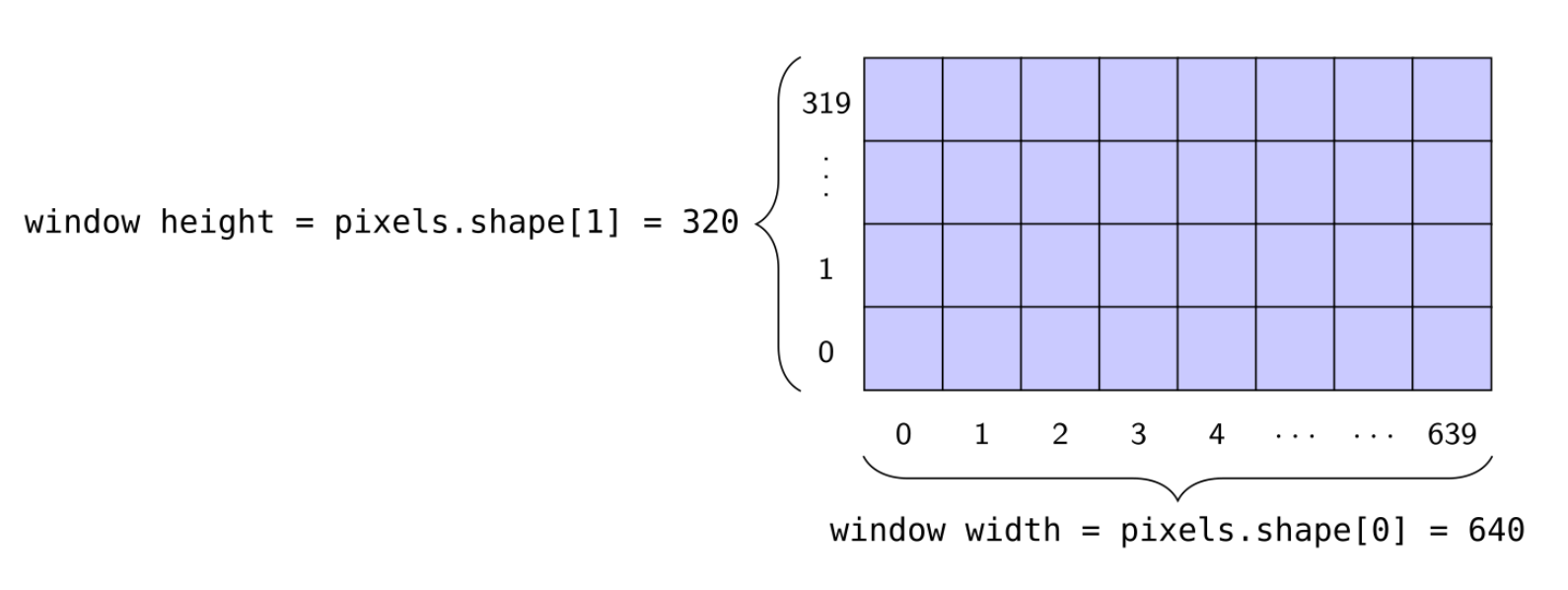
这里需要注意的是,taichi采用标准笛卡尔坐标系定义像素坐标,即原点在左下角,向右是x的正方向,向上是y的正方向。
1
2
3
4
5
6
7
8
9
10
11
12
13
14
15
16
17
18
19
20
21
22
23
24
25
26
27
28
29
30
31
32
33
34
35
36
37
38
39
40
41
42
43
44
45
46
47
48
49
50
51
52
53
54
55
56
57
58
59
60
61
62
63
64
65
66
67
68
69
70
# 基础显示
gui = ti.GUI('Hello World!', (640, 360))
while gui.running: # 注意需要在while循环中调用gui.show(),否则窗口会闪烁后消失
if some_events_happend():
gui.running = False # 在循环内设置False来关闭窗口
gui.show()

# 显示field或者ndarray
gui = ti.GUI('Set Image', (640, 480))
# gui = ti.GUI('Fast GUI', res=(400, 400), fast_gui=True)
image = ti.Vector.field(3, ti.f32, shape=(640, 480))
while gui.running:
gui.set_image(image)
gui.show()

# taichi支持绘制简单的几何图形,包括line、circle、triangles、rectangles、arrows、texts
# 均支持单个几何图形和列表形式的几何图形绘制
# lines
import numpy as np
X = np.random.random((5, 2))
Y = np.random.random((5, 2))
gui = ti.GUI("lines", res=(400, 400))
while gui.running:
gui.lines(begin=X, end=Y, radius=2, color=0x068587)
gui.show()

# circle
import numpy as np
pos = np.random.random((50, 2))
# Create an array of 50 integer elements whose values are randomly 0, 1, 2
# 0 corresponds to 0x068587
# 1 corresponds to 0xED553B
# 2 corresponds to 0xEEEEF0
indices = np.random.randint(0, 2, size=(50,))
gui = ti.GUI("circles", res=(400, 400))
while gui.running:
gui.circles(pos, radius=5, palette=[0x068587, 0xED553B, 0xEEEEF0], palette_indices=indices)
gui.show()

# triangles
import numpy as np
pos = np.random.random((50, 2))
# Create an array of 50 integer elements whose values are randomly 0, 1, 2
# 0 corresponds to 0x068587
# 1 corresponds to 0xED553B
# 2 corresponds to 0xEEEEF0
indices = np.random.randint(0, 2, size=(50,))
gui = ti.GUI("circles", res=(400, 400))
while gui.running:
gui.circles(pos, radius=5, palette=[0x068587, 0xED553B, 0xEEEEF0], palette_indices=indices)
gui.show()

# triangles
import numpy as np
X = np.random.random((2, 2))
Y = np.random.random((2, 2))
Z = np.random.random((2, 2))
gui = ti.GUI("triangles", res=(400, 400))
while gui.running:
gui.triangles(a=X, b=Y, c=Z, color=0xED553B)
gui.show()

# arrows
import numpy as np
begins = np.random.random((100, 2))
directions = np.random.uniform(low=-0.05, high=0.05, size=(100, 2))
gui = ti.GUI('arrows', res=(400, 400))
while gui.running:
gui.arrows(orig=begins, direction=directions, radius=1)
gui.show()
  • 调用set_image()方法的时候,GUI系统会将图像数据转化成可显示的格式,并将结果复制到窗口缓冲区,当窗口很大的时候,这会导致巨大的负载,难以实现高FPS

  • 如果只需要调用set_image()方法而不使用其他任何绘图命令,则可以启用fast_gui 模式以获得更好的性能。此模式允许 taichi GUI 将图像数据直接写入帧缓冲区而无需额外复制,并显著提高 FPS

taichi GUI也支持事件处理,包括鼠标和键盘的控制方式。

1
2
3
4
5
6
7
8
9
10
11
12
13
14
15
16
17
18
19
20
21
22
23
24
25
26
27
28
29
30
31
32
33
34
35
36
37
38
39
40
41
42
43
44
45
46
# 一个输入事件Event包括(Event type和Event key)
# Event type表示事件状态,包括鼠标或者键盘的按下和释放,或者鼠标/滚轮的移动
ti.GUI.RELEASE # key up or mouse button up
ti.GUI.PRESS # key down or mouse button down
ti.GUI.MOTION # mouse motion or mouse wheel

# Event key则表示具体的按键
# for ti.GUI.PRESS and ti.GUI.RELEASE event:
ti.GUI.ESCAPE # Esc
ti.GUI.SHIFT # Shift
ti.GUI.LEFT # Left Arrow
'a' # we use lowercase for alphabet
'b'
...
ti.GUI.LMB # Left Mouse Button
ti.GUI.RMB # Right Mouse Button

# for ti.GUI.MOTION event:
ti.GUI.MOVE # Mouse Moved
ti.GUI.WHEEL # Mouse Wheel Scrolling

# 可以通过gui.get_event()参数过滤的方式来捕捉某类型事件
# if ESC pressed or released:
gui.get_event(ti.GUI.ESCAPE)

# if any key is pressed:
gui.get_event(ti.GUI.PRESS)

# if ESC is pressed or SPACE is released: 注意这里是OR的关系
gui.get_event((ti.GUI.PRESS, ti.GUI.ESCAPE), (ti.GUI.RELEASE, ti.GUI.SPACE))

# 如果不给任何参数,那么会从队列中弹出一个事件保存到gui.event中
if gui.get_event():
print('Got event, key =', gui.event.key)

# 还提供gui.is_pressed()来检测按下的键,不过需要和gui.event()配合使用,否则不会更新
while gui.running:
gui.get_event() # must be called before is_pressed
if gui.is_pressed('a', ti.GUI.LEFT):
print('Go left!')
elif gui.is_pressed('d', ti.GUI.RIGHT):
print('Go right!')
gui.show()

# 对于光标位置,则使用gui.get_cursor_pos()返回,返回值是一对范围在[0, 1]内的浮点数
mouse_x, mouse_y = gui.get_cursor_pos()

同时taichi GUI系统还提供了一些组件来自定义控制界面,这里就简单跳过

GGUI

然后是更高级的GUI系统,GGUI。它使用GPU进行渲染,使得3D场景的渲染速度更快。GGUI可以绘制的类型包括:

  • 2D Canvas:用于绘制简单2D几何图形
  • 3D Scene:渲染3D mesh和粒子,提供可配置的摄像头和光源
  • GUI控件:包括按钮、文本框等
1
2
3
4
5
6
7
8
9
10
11
12
13
14
15
16
17
18
19
20
21
22
vertices         = ti.Vector.field(2, ti.f32, shape=200)
vertices_3d = ti.Vector.field(3, ti.f32, shape=200)
indices = ti.field(ti.i32, shape=200 * 3)
normals = ti.Vector.field(3, ti.f32, shape=200)
per_vertex_color = ti.Vector.field(3, ti.f32, shape=200)

color = (0.5, 0.5, 0.5)

# 创建windows
window = ti.ui.Window(name='Window Title', res = (640, 360), fps_limit=200, pos = (150, 150))

# 2D canvas
canvas = window.get_canvas()
canvas.set_background_color(color)
canvas.triangles(vertices, color, indices, per_vertex_color)

radius = 5
canvas.circles(vertices, radius, color, per_vertex_color)

width = 2
canvas.lines(vertices, width, indices, color, per_vertex_color)
canvas.set_image(window.get_image_buffer_as_numpy())
  • 其中,几何图形的位置是[0.0, 1.0]之间的浮点数,表示几何图形在画布上的相对位置;
  • 每帧结束后画布都会被清除。需要始终在渲染循环中调用这些方法。
1
2
3
4
5
6
7
8
9
10
11
12
13
14
15
16
17
18
19
20
21
22
23
24
25
26
27
28
29
30
31
32
33
34
# 3D Scene
scene = window.get_scene()

# 相机配置
camera = ti.ui.Camera()
camera.position(1, 2, 3) # x, y, z
camera.lookat(4, 5, 6)
camera.up(0, 1, 0)
camera.projection_mode(ti.ui.ProjectionMode.Perspective)
scene.set_camera(camera)

# 光源配置
scene.point_light(pos=(1, 2, 3), color=(0.5, 0.5, 0.5))

# 3D形状的绘制
scene.lines(vertices, width, indices, color, per_vertex_color)
scene.mesh(vertices_3d, indices, normals, color, per_vertex_color)
scene.particles(vertices, radius, color, per_vertex_color)

# 绘制完成之后,在canvas上进行渲染
canvas = window.get_canvas()
canvas.scene(scene)
window.show() # 在每帧渲染结束后调用

# 也可以获取每一帧的颜色/深度信息
img = window.get_image_buffer_as_numpy()
window.get_depth_buffer(scene_depth)
depth = window.get_depth_buffer_as_numpy()

# 保存图像
window.save_image('xxx.png') # 将当前帧写入图像文件,但是需要注意在调用window.show()前调用该方法

# 如果是headless模式,则在初始化window的时候进行设置,可以正常调用save_image(),同时删除window.show()
window = ti.ui.Window('Window Title', (640, 360), show_window = False)
  • 其中几何图形的位置/中心应该位于世界空间坐标中;
  • 需要在渲染循环中调用光源配置等方法;
  • camera.track_user_inputs提供一个非常直接的方式来控制相机(wasdeq来移动相机);
  • 这里的vertex_offsetvertex_countindex_offsetindex_count控制粒子和mesh的可见部分,可以用于渲染指定部分粒子/mesh
1
2
3
4
5
# 事件处理与ti.gui类型,不过接口有所变化

events = window.get_events() # 获取所有events
window.get_cursor_pos() # 获取鼠标位置
window.is_pressed(key) # 检查按键是否被按下

更多的使用案例可以参考官方的examples

Result Export

最后介绍一些将渲染结果导出为图像或者视频的功能。

1
2
3
4
5
6
7
8
9
10
11
12
13
14
15
16
17
18
19
20
21
22
23
24
25
26
27
28
29
30
31
32
33
34
35
36
37
38
39
40
# 使用ti.GUI.show(filename)导出图像,不仅可以在屏幕上显示GUI,还可以保存图像
gui = ti.GUI("Random pixels", res=512)
for i in range(iterations):
# ...
filename = f'frame_{i:05d}.png' # create filename with suffix png
gui.show(filename) # export and show in GUI

# 使用ti.tools.imwrite(filename)保存图像
pixels = ti.field(ti.u8, shape=(512, 512, 3))

filename = f'imwrite_export.png'
ti.tools.imwrite(pixels.to_numpy(), filename)

# 假设在当前目录存在000.png,001.png,...等一系列图像,那么可以通过运行下面命令创建mp4文件,会按照图像进行排序
ti video -f40 # -f表示FPS

# 将mp4转化成gif
ti gif -i video.mp4 -f40

# VideoManager可以帮助我们导出mp4或者gif
result_dir = "./results"
video_manager = ti.tools.VideoManager(output_dir=result_dir, framerate=24, automatic_build=False)
for i in range(50):
# ...
pixels_img = pixels.to_numpy()
video_manager.write_frame(pixels_img)

video_manager.make_video(gif=True, mp4=True)

# PLYWriter可以帮助我们以ply格式导出结果
for frame in range(10):
np_pos = np.reshape(pos.to_numpy(), (num_vertices, 3))
np_rgba = np.reshape(rgba.to_numpy(), (num_vertices, 4))
# create a PLYWriter
writer = ti.tools.PLYWriter(num_vertices=num_vertices)
writer.add_vertex_pos(np_pos[:, 0], np_pos[:, 1], np_pos[:, 2])
writer.add_vertex_rgba(
np_rgba[:, 0], np_rgba[:, 1], np_rgba[:, 2], np_rgba[:, 3])
writer.export_frame_ascii(frame, series_prefix)
# 在ply上还可以增加其他channel

Debug

taichi提供了一些机制来进行debug:

1
2
3
4
5
6
7
8
9
10
11
12
13
14
15
16
17
18
19
20
21
22
23
24
25
26
27
28
29
30
31
32
33
34
35
# 1.在taichi作用域内使用print来检查变量的值

# 2.序列化程序
ti.init(arch=ti.cpu, cpu_max_num_threads=1) # 序列化整个程序

@ti.kernel
def prefix_sum():
ti.loop_config(serialize=True) # 序列化下一个for循环
for i in range(1, n):
val[i] += val[i - 1]

for i in range(1, n): # 仍然是并行
val[i] += val[i - 1]

# 3.使用ti.init(debug=True)激活调试模式
ti.init(arch=ti.cpu, debug=True) # 检查越界数组访问

# 4.使用assert断言
@ti.kernel
def do_sqrt_all():
for i in x:
assert x[i] >= 0, f"The {i}-th element cannot be negative" # 运行时assert,不过需要打开debug模式
x[i] = ti.sqrt(x[i])

@ti.func
def copy(dst: ti.template(), src: ti.template()):
ti.static_assert(dst.shape == src.shape, "copy() needs src and dst fields to be same shape") # 编译时assert
for I in ti.grouped(src):
dst[I] = src[I]

# 5.使用sys.tracebacklimit产生更简洁的回溯
import taichi as ti
import sys
sys.tracebacklimit=0
...

taichi学习笔记(1)-基础使用
https://evernorif.github.io/2025/04/04/taichi学习笔记-1-基础使用/
作者
EverNorif
发布于
2025年4月4日
许可协议